How to search for files based on metadata?
Last modified: September 20, 2025
Much more than a simple search tool, DMF has evolved to become a true file manager. After exploring its bulk renaming capabilities, we are focusing here on its analytical power.
Thanks to unprecedented management of metadata and file characteristics, DMF becomes a genuine search engine, allowing you to target files with surgical precision. Here, DMF's filters are not used to exclude, but to precisely define your target files.
Here are some examples of properties supported by DMF:
- Geolocating: Identification of photos or videos taken around a GPS coordinate (customizable radius).
- Timeframe: Search by date taken within a specific range.
- Visual or audio properties: Search based on resolution, orientation (portrait/landscape), or artist name for audio files…
- Technical specifications: Identification according to codecs used, bitrate, sampling rate…
How to search for files with DMF?
As a reminder, DMF distinguishes between two types of files:
- Common files (untyped)
- Multimedia documents (images, videos, audio)
We will see below how to use these two search modes.
First case: Searching for common files:
DMF Configuration: Since we are not targeting specific document types (images, videos, music), DMF should be configured in "Search for identical files" mode.
However, since the goal is not to detect duplicates (the default behavior), you need to disable the content comparison criterion. To do this, open the Criteria → File Content tab, then check the Allow different content option.
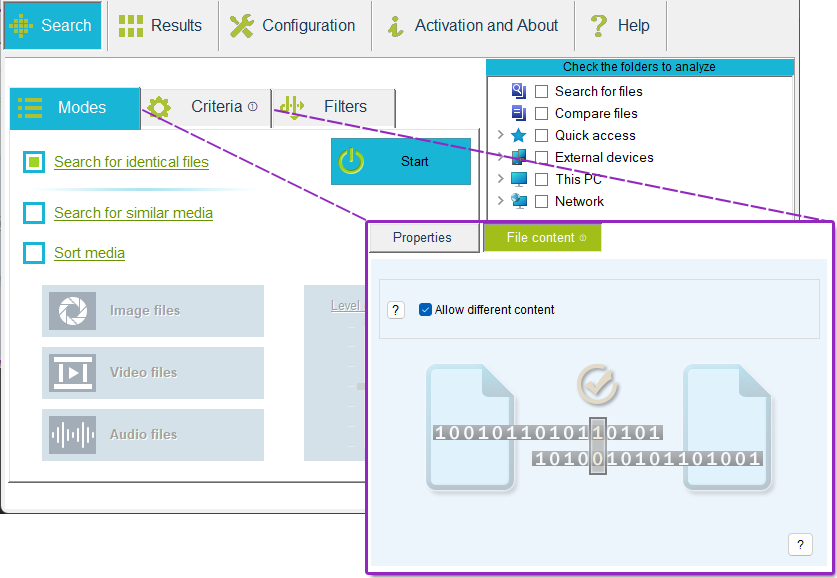
DMF will then simply list all the files found in the selected folders.
Defining the search properties: Open the Filters->Properties tab to define the system properties you are searching for. Once DMF is correctly configured, all that's left is to click the Start button to launch the search.
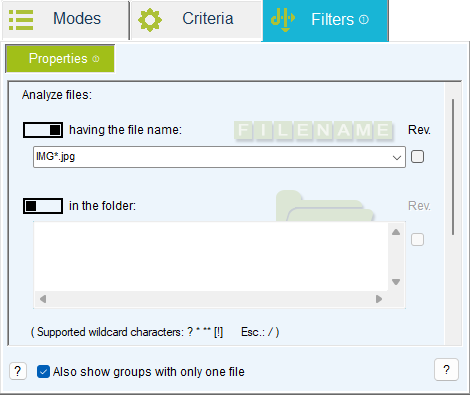
Example: To locate all files whose name starts with IMG and have the JPG extension, configure DMF as shown opposite.
Second case: Searching for multimedia documents:
This is arguably the most interesting case because DMF brings a new dimension to search that few software programs can offer.
Just like in the first case where DMF was configured not to compare file content, here you simply need to select the Sort media mode. By default, DMF will just list the documents present.
Defining the search properties: In this mode, 3 additional tabs (Image, Video, Audio) appear within the Filters tab. These new filters allow you to precisely describe the content of the documents you are looking for.
Example: To illustrate this type of search, imagine you are looking for all the music tracks by your favorite artist (perhaps Avril Lavigne). To do this, configure DMF as shown below.
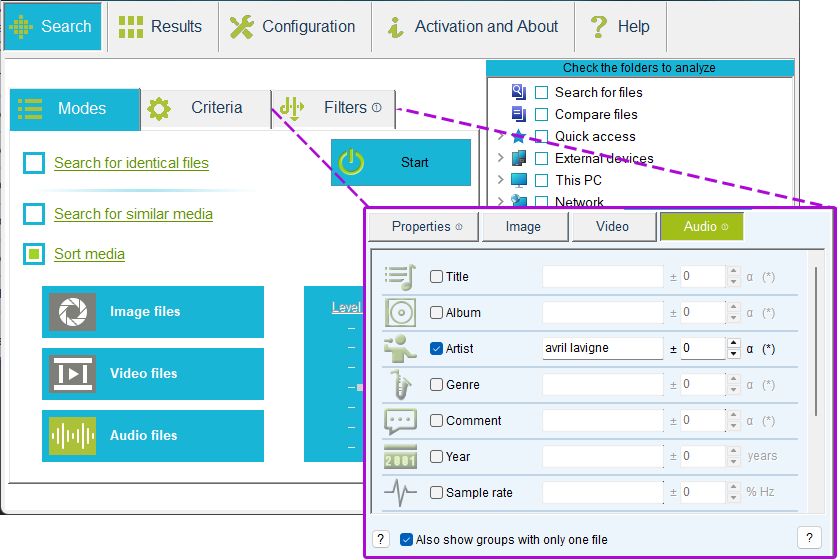
Then start a search and all her music will appear.
DMF allows you to define a tolerance on filters as well as criteria (± a few character differences) and also supports the use of wildcards (*, ?, [!]).
Going further
In addition to this article, I recommend reading the one regarding searching for files with identical or similar content: How to search for all occurrences of a file?