How to batch rename files with DMF?
Last modified: April 10, 2026
Already the gold standard for tracking down duplicates, Duplicate Media Finder is evolving. Thanks to its new features, it has now transformed into a true file management tool.
We previously covered its effectiveness in finding specific files using their metadata; now let's see how to automate bulk file renaming. Forget the chore of processing files one by one: make way for speed and efficiency.
The renaming tool built into DMF is a powerful module offering complete customization freedom. It allows you to build new filenames by combining fixed text, system properties, and metadata:
- Text elements: add prefixes, suffixes, or replace and remove specific characters.
- System properties: integrate creation date, file size, etc.
- Advanced metadata: use EXIF data (date taken, image dimensions, GPS coordinates), etc.
- Numbering: add a sequential counter to organize your series.
To illustrate this article, we will focus on a great classic: replacing original names with sequential numbering (e.g., 0000.jpg, 0001.jpg, 0002.jpg, ...). Our starting point? A folder filled with images with completely disparate names.
Assuming you are familiar with the basics of DMF and have already organized your file list, let's see how to standardize all these names in just a few clicks.
Procedure:
To begin, select all the relevant files in your list, then right-click and choose Selection -> Rename…
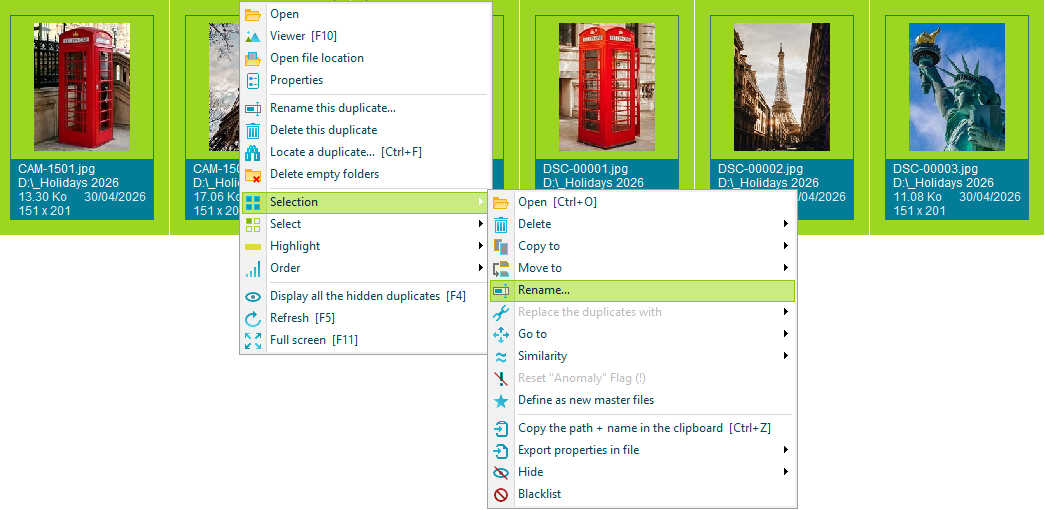
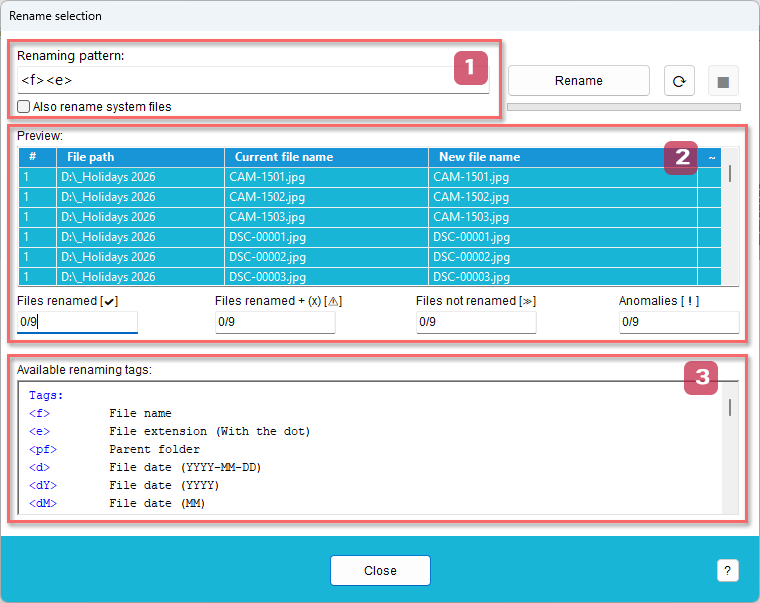
The built-in renaming tool will then open. It is structured around three main areas:
Renaming pattern:
1 This is where you define the format of your new names. You can type free text or use predefined tags < >. These tags are dynamic: they are automatically replaced by the actual information extracted from the file.
Example: The tag <f> represents its current name and <e> its extension. The default combination of these two tags <f><e> therefore leaves the name unchanged.
Preview:
2 This area consists of a table listing all the files you had selected. The New filename column displays the result of the renaming pattern you are typing in real time. This guarantees you won't make any mistakes before actually applying the changes.
Available renaming tags:
3 This section lists your library of available tags and modifiers.
Modifiers ( ) can be applied to tags < > in order to alter their format.
Tip: Click directly on a tag to instantly insert it into your renaming pattern.
Putting sequential numbering into practice:
In our example, we want to replace the original name with an automatically incrementing number, while naturally keeping the file extension.
The Available renaming tags section shows that the tag <q1…9> corresponds to a sequence number. The digit [1, 9] defines the number of digits for the sequence number: <q4> will generate a 4-digit sequence: 0000, 0001, 0002, 0003...
Concretely, if you enter the pattern <q4><e>, the New filename column of the preview table will instantly display the desired final result (the number followed by the extension). This allows you to check that everything is perfect before launching the operation.
If you are satisfied with the result, click the Rename button to start the process.
Warning: Take the time to carefully double-check your work, as this action is permanent and it will not be possible to undo it.
Going further
Now that you have mastered the basics, let's dive deeper into how the renaming tool works.
Starting back from our previous example <q4><e>, we will progressively enrich our pattern. You will thus discover the full logic and power of DMF's tool, giving you everything you need to handle your next tasks with confidence.
| Objective | Renaming pattern | Example |
|---|---|---|
| Starting pattern: numbering + extension | <q4><e> | CAM-1501.jpg -> 0000.jpg |
| Keep track of the original name | <q4><f><e> | CAM-1501.jpg -> 0000CAM-1501.jpg |
| Improve readability: add parentheses | <q4>(<f>)<e> | CAM-1501.jpg -> 0000(CAM-1501).jpg |
| Truncate the original name: Add the tag modifier (p,s) to the <f> tag | <q4>(<f(1,3)>)<e> | CAM-1501.jpg -> 0000(CAM).jpg |
You now have everything you need to customize your filenames according to your needs. It's your turn: explore the combinations and turn the chore of bulk renaming into child's play!