How to search for files within a compressed archive (ZIP)?
Last updated: July 16, 2026

Finding a lost file on your hard drive is a classic scenario: you forget its location, you hesitate on the name… While Windows Explorer gets you out of trouble more or less, things get really tricky when the file is hidden deep inside a ZIP archive. So, how do you perform an efficient search under these conditions?
This is where Duplicate Media Finder comes in. A true digital Swiss Army knife, this indispensable software solves the problem in the blink of an eye by exploring your archive files as easily as regular folders.
Although its primary function is duplicate detection, Duplicate Media Finder (DMF) also proves to be an impressively efficient file search tool that will exceed all your expectations.
Now let's see how to exploit Duplicate Media Finder to achieve our goal, but first and foremost, let's make sure DMF is correctly configured.
Checking the configuration:
Allow archive analysis:
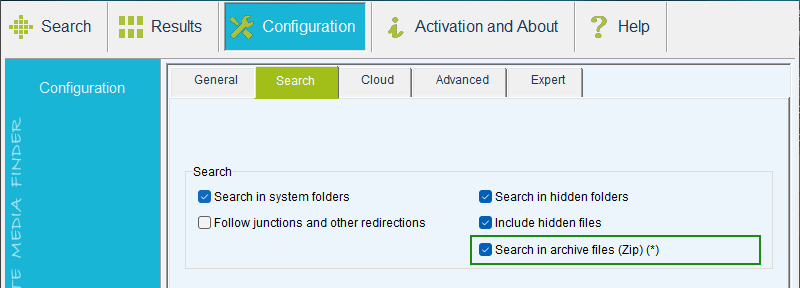
First of all, make sure that the boxed option below is checked. It is essential to allow the software to scan and analyze the content of your compressed files.
Adjust size limits:
For performance reasons, DMF limits the size of archives to be explored by default. Depending on your needs, you may need to increase the following two values:
- Max. archive size: defines the maximum size of archive files that will be analyzed.
- Max. file size in archive: determines the maximum size of processed files contained inside these archives.
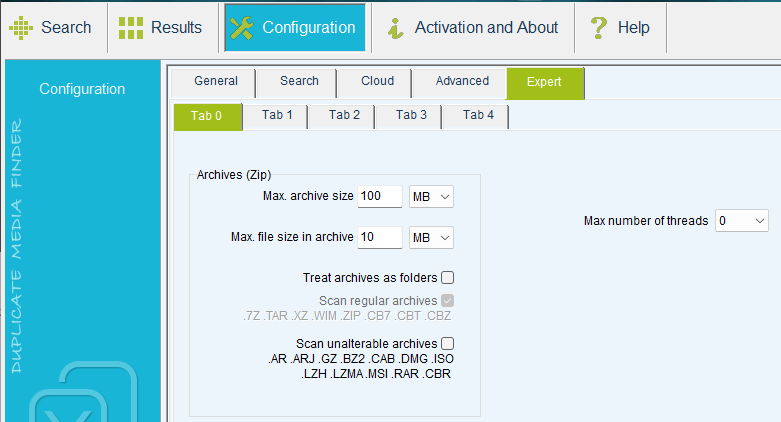
Note: To display the Expert tab, check Show Expert tab in the Advanced tab.
Finding a Specific File
Now that DMF is correctly configured, it's time to start searching! From now on, the software will treat your archives exactly like regular folders, meaning your file search is performed in a completely standard way. To review the step-by-step process, I invite you to read the first part of our article: How to search for files based on metadata?
Please note that DMF is capable of finding a document even if you only have a vague idea of its name. To do this, you can rely on wildcards (*, ? [!]) or use the approximate search (noted as ± α) which finds the file even with a few character differences.
Going Further:
The job is done, and we could stop there. However, it would be a shame to miss out on the true strength of this software! Indeed, in addition to classic searches based on system criteria (name, extension, size, date, etc.), DMF allows you to push the exploration much further. You can target criteria specific to multimedia files, whether they are metadata (GPS coordinates, capture date...) or technical specifications (resolution, bitrate, codec...). To discover how to exploit this full potential, I invite you to read the second part of the same article: How to search for files based on metadata?