How to create a photo slideshow from multiple sources?
Last modified: june 11, 2026

After a trip with friends, there's nothing like a slideshow to capture your memories. Discover how to easily gather and organize your photos and those of your loved ones for a seamless result.
Why is it harder than it looks?
You might be tempted to simply copy your friends' photos into your own folder. But when viewing them, you will quickly notice that the chronological order has vanished. Files are often sorted by name (alphabetical order), breaking the narrative flow of your trip: your memories then seem completely mixed up.
To illustrate this point, let's imagine the photos come from three different people: Alice, Bob, and Charlie. To keep it simple, let's assume everyone took just one snapshot of each city visited.
| London (January 1, 2026) |
Paris (January 2, 2026) |
New York (January 3, 2026) |
|
|---|---|---|---|
| Alice | 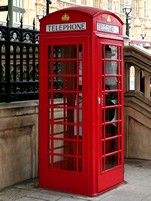 CAM-1501.jpg |
 CAM-1502.jpg |
 CAM-1503.jpg |
| Bob | 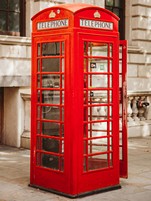 DSC-00001.jpg |
 DSC-00002.jpg |
 DSC-00003.jpg |
| Charlie | 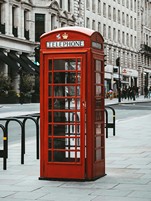 IMG_1005.jpg |
 IMG_1006.jpg |
 IMG_1007.jpg |
As we have seen, if you gather these photos into a single folder, the slideshow will display them in alphabetical order. You would first see all of Alice's photos, then Bob's, and finally Charlie's. However, it would be much more logical to view them in chronological order, which means grouping them by theme (by city in our example): you would thus see all the photos of London together, followed by those of Paris, and then New York.
What is the right approach?
To achieve this result, the most commonly used method involves the following two key steps:
- First, sort the photos chronologically (based on the date taken).
- Then, rename all the files by applying a global sequential numbering.
To carry out these two operations, we will use a single software tool: Duplicate Media Finder. While it is well-known for its ability to remove duplicates, it is its sorting and renaming features that will allow us to harmonize our slideshow here. Plus, you can take advantage of this software to delete your duplicate photos in the blink of an eye!
How to create your slideshow with Duplicate Media Finder (DMF)?
Step 1: Sort the photos in chronological order:
- Place all the photos, regardless of their source, into a single folder, for example Holidays 2026.
- Set Duplicate Media Finder to Sort media mode. Used without any criteria, this mode simply lists the content of your holiday folder.
- Check your Holidays 2026 folder in the right-hand panel and click Start to display its content.
- Right-click in the list to open the context menu, then choose Order -> Duplicates -> By date (metadata).
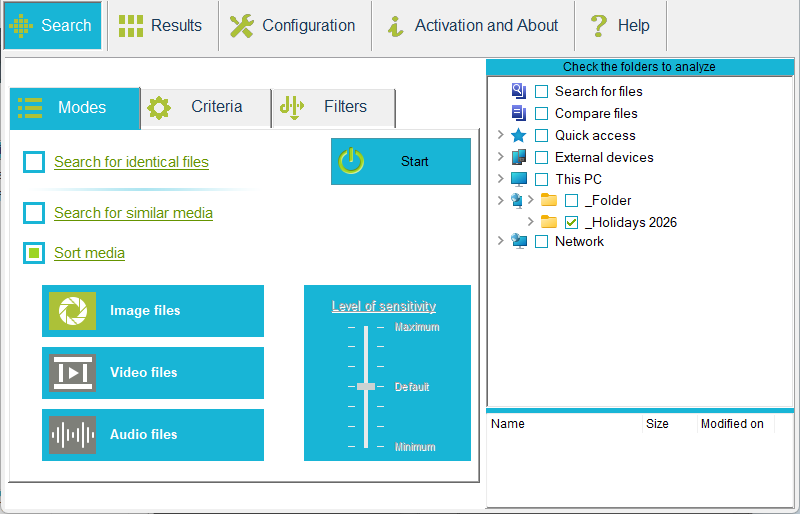
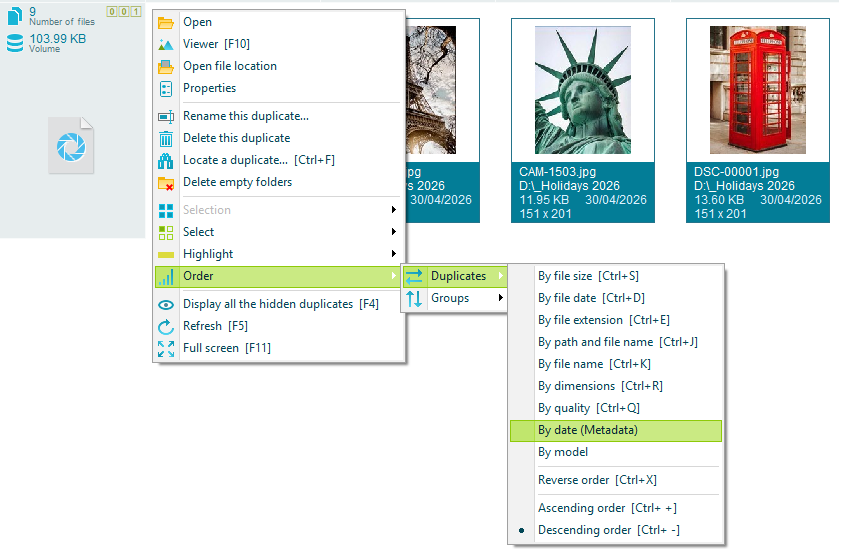
Your images from different sources (Alice, Bob, Charlie) are now perfectly sorted according to the exact moment they were taken.
Step 2: Rename the photos:
Once the chronological order is restored, all that's left is to permanently lock in this order by assigning a global sequential number to each photo. This way, the alphabetical sorting of the files will perfectly match the chronological order.
This second and final step is already detailed with precision in the article How to batch rename files with DMF?. I invite you to read it to finalize our tutorial. Use the following renaming pattern <q4><e> to get sequential filenames.
In the end, it only took two quick steps to organize all your snapshots and create a perfectly structured slideshow.